Preface
Yates QGIS Plugins are purpose-built plugins for QGIS.
It is strongly recommended to consult the latest QGIS official documentation for questions specific to the QGIS application.
Installation
To install Yates QGIS Plugins the plugin repository must be added to the QGIS list of repositories. This repository will require valid credentials to access; ensure that you have the correct credentials added to the QGIS authentication system.
Yates credentials must be added using Basic Auth. Be sure to name the configuration appropriately.
With the credentials add to the authentication system, navigate to Plugins -> Manage and Install Plugins > Settings from the task bar to view the connected repositories.
Click the + button and add the repository https://qgsplugins.yesrus.com/plugins/repo to the list of repositories, selecting the aforementioned authentication configuration to connect securely.
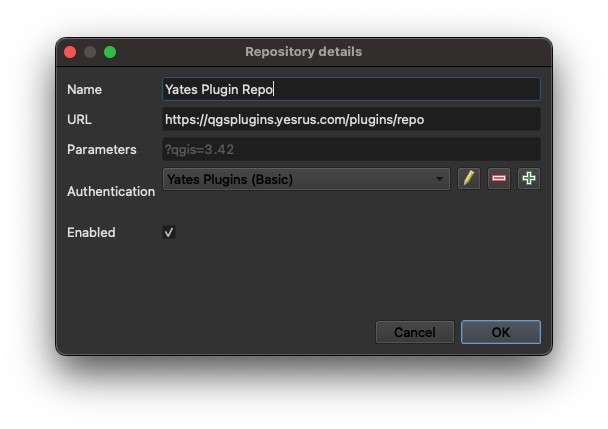
When adding the URL, be sure the URL is
httpsand nothttp
Once complete, you will be able to access all plugins available to your user account.
To install a plugin navigate to the All section of the Plugins Management dialog
and search for a plugin.
Available Tools
The following tools are available to use from the main Yates plugin:
It is important to note that any tools in the toolbar will be disabled when opening any QGIS project except a project that has been set up using the Configure Project algorithm.
If the toolbar containing these tools is disabled after a project has been configured already, close the project and re-open.

Workorder Filter
Summary
The Workorder Filter will appear as a text-input style dropdown available in the task bar.
Selecting a workorder from this dropdown will apply a filter to all applicable layers in the current QGIS project. This filter will "turn off" all features that are not associated with the selected workorder.
The following layers will be filtered for the selected workorder:
- Design
- FDP
- Splice Case
- Pole
- Fiber Pedestal
- Manhole
- Handhole
- FDH
- Service Location
- Downguy
- Fiber
- Fiber Drop
- Duct Path
- Overhead Guy
- Layout Frame
- Utilities
- Foreign Utility Point
- Foreign Utility Line
- Rounded Culvert
- Box Culvert
Searching
Entering text into the dropdown will search/filter the list of available workorders.
Make-Ready Engineering Summary
The MRE Summary tool can be used to view Make-Ready information for a particular layout frame. This information will be viewed as a table identical to the MRE table from the AutoCAD construction prints.
Clicking the MRE Summary button will turn on the tool, allowing the user to select a layout frame. To turn off the tool, select a different QGIS tool (selection tool, identify tool, etc.)
Processing Algorithms
The following processing algorithms are available:
For information about processing tools in QGIS, refer to the official documentation
Configure Project
The Configure Project process will set up the currently opened (or selected) project for use with the rest of the tools in this plugin. This will include:
- Assigning internal settings to identify the project as a "Yates" project
- Connecting to all services and adding the feature layers for those connection to the current project
- Applying the appropriate symbology for all connected feature layers
This process will require the users GeoServer authentication to continue. If you are unsure which authentication configuration to use, contact support at Yates Engineering.